BlucaScan Documentation
Quick Start Guide
Get up and running with BlucaScan in minutes. Follow this guide to understand the file processing workflow and basic configuration.
File Processing Workflow
Understanding how BlucaScan processes your files
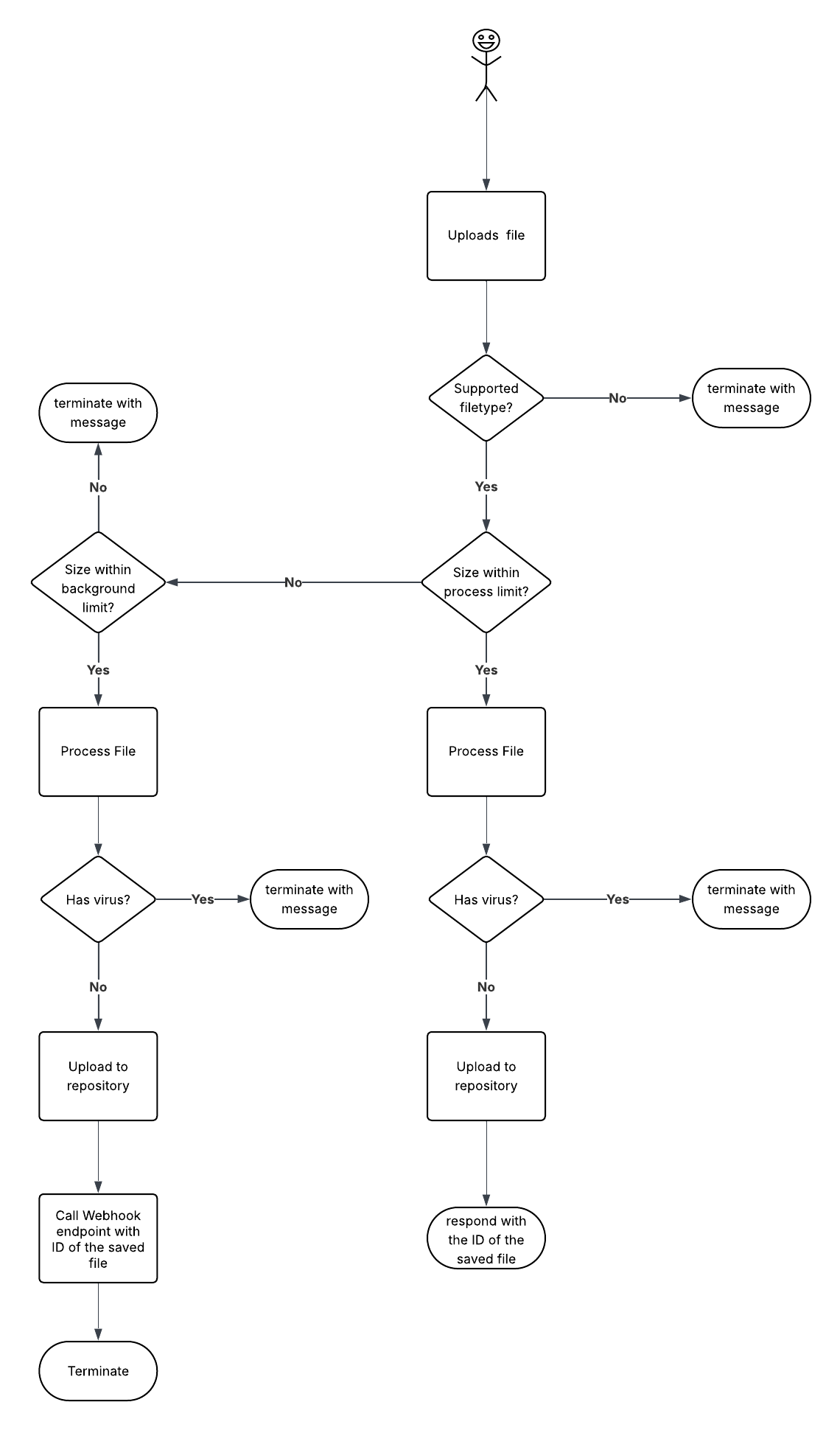
The flowchart above illustrates the complete file processing workflow:
File Upload: User uploads a file to the system
File Type Check: System validates if the file type is supported
Size Validation: Checks file size against configured thresholds
Virus Scanning: Comprehensive malware detection and analysis
File Transfer: Clean files are transferred to your repository
Clean File Processing
CLEAN
File passes all security checksTRANSFER
File sent to destination serverWEBHOOK
Notification sent to your endpointMalicious File Handling
MALICIOUS
Virus or malware detectedBLOCKED
Transfer prevented for securityQUARANTINE
File isolated and loggedImportant: Files that exceed size thresholds may be processed in the background. You'll receive notifications via webhook when processing is complete.
Next Steps
Continue your BlucaScan setup
1
Configure Scanner Settings
Set up file size thresholds, supported media types, and security policies
2
Set Up File Transfer
Configure your destination server and transfer protocols
3
Configure Webhooks
Set up real-time notifications for scan results and file transfers